NetherSX2 First Game Setup: Launch Your First PS2 Game Step by Step
A complete first-game walkthrough for NetherSX2 on Android, from BIOS and game files to first settings, controls check, and your first save.
NetherSX2 First Game Setup: Launch Your First PS2 Game Step by Step
Your first NetherSX2 game deserves a calm runway: the emulator installed, your own legally dumped BIOS ready, one legally backed-up game file in place, and twenty unhurried minutes.
This walkthrough assumes those legal foundations from the install and BIOS guides and focuses on the part nobody writes down: the ordered first session that turns a fresh install into a working retro console. The NetherSX2 APK Download for Android PS2 Emulator page carries the download package and full app details.
Step 1: Confirm BIOS and Game Directory
Open the emulator's settings and confirm the BIOS you provided is the one selected, then point the game directory at the folder holding your game backups so the library can see them.
Do this slowly. A remarkable share of first-launch failures are a directory pointing one folder too high or too low, which is a thirty-second fix once suspected. NetherSX2 BIOS Setup Guide for Android explains this side of the topic in full. Readers can find the full breakdown in How to Install NetherSX2 APK on Android Safely.
- Select your legally dumped BIOS in settings
- Set the game directory to the folder with your backups
- Confirm your game appears in the library list
- Note the game's version shown in its information
Step 2: Choose a Friendly First Game
Pick a well-known, well-behaved title for the maiden voyage rather than the most demanding game you own. A smooth first success teaches the system; a famous problem title teaches only suspicion.
Your favourite game can be second. The first game's job is to prove the chain: files, BIOS, settings, controls, and saving, end to end. NetherSX2 Game Compatibility Guide covers this in more detail.
Step 3: Accept Defaults, Then Look at Three Settings
Launch once on defaults to establish that the chain works. Then visit exactly three settings before real play: renderer, internal resolution, and aspect presentation, set conservatively for your phone class.
Every other setting can wait. A first session with three understood choices beats a first session with thirty mysterious ones, and the defaults were chosen to be survivable. Best NetherSX2 Settings for Smooth PS2 Gameplay explains this side of the topic in full.
Step 4: The Five-Minute Test
Play into the first real gameplay, past menus and introductions, and find a scene with movement, effects, and other characters. Menus lie; gameplay confesses.
Watch for the trio: smooth motion, clean sound, correct picture shape. If all three hold for five busy minutes, your foundation is real and the session can become a play session.
Step 5: Arrange Controls Before They Matter
Pause somewhere safe and arrange the touch layout, or confirm your gamepad, before the game asks anything difficult of your hands.
Move one button that annoyed you during the test. That single personal adjustment teaches the layout editor better than any tutorial, and it will not be the last. Readers can find the full breakdown in NetherSX2 Touch Controls Customization Guide. NetherSX2 Controller Setup Guide for Bluetooth and USB Gamepads covers this in more detail.
Step 6: Make the First Save Properly
At the game's first natural save point, save to the memory card, then also make a save state, and understand the difference by having done both: the card is the archive, the state is the convenience.
Label this moment mentally as your restore point. Every later experiment in this game is safe because this save exists. NetherSX2 Save States, Memory Cards, and Backup Guide explains this side of the topic in full.
Step 7: One Enhancement, Tested
With the foundation proven, audition exactly one enhancement: widescreen patch if the game supports it, or one upscaling step, never both on a first day.
Test it in the same busy scene as step 4. Keep it only if the trio, motion, sound, shape, survives the audition unchanged. Readers can find the full breakdown in NetherSX2 Widescreen Patches Guide. NetherSX2 Graphics Upscaling Guide covers this in more detail.
Step 8: Record What You Chose
Write three lines somewhere durable: game version, renderer, resolution, and any oddity you noticed. This is the seed of your per-game knowledge, and future sessions will thank it.
Players imagine they will remember settings. They remember stories; settings are remembered by notes. Be the player with notes from day one.
Step 9: End the Session Cleanly
Save on the memory card as the final act, close the game through the emulator rather than killing the app, and glance at the library to see your game listed with its details correct.
That clean ending is also a systems check: a game that saves, closes, and lists properly has passed every layer of the setup in one motion.
What the Second Game Teaches
Your second title will take ten minutes instead of an evening, because the walkthrough has become a routine: directory already set, settings trio judged quickly, controls cloned, first save made early.
That compression is the real product of a careful first setup. The emulator disappears, and what remains is a library that keeps inviting you back.
Conclusion
A first game set up in this order, files confirmed, defaults respected, three settings understood, controls fitted, saves made properly, one enhancement auditioned, becomes the template for every game that follows. The ceremony takes one evening and repays it across the whole library.
Launch your second game whenever you are ready and notice how little of this walkthrough you need to re-read. That feeling, the system becoming invisible, is the setup succeeding. The NetherSX2 APK Download for Android PS2 Emulator page carries the download package and full app details. Readers can find the full breakdown in How to Install NetherSX2 APK on Android Safely and NetherSX2 BIOS Setup Guide for Android.
Related Guides
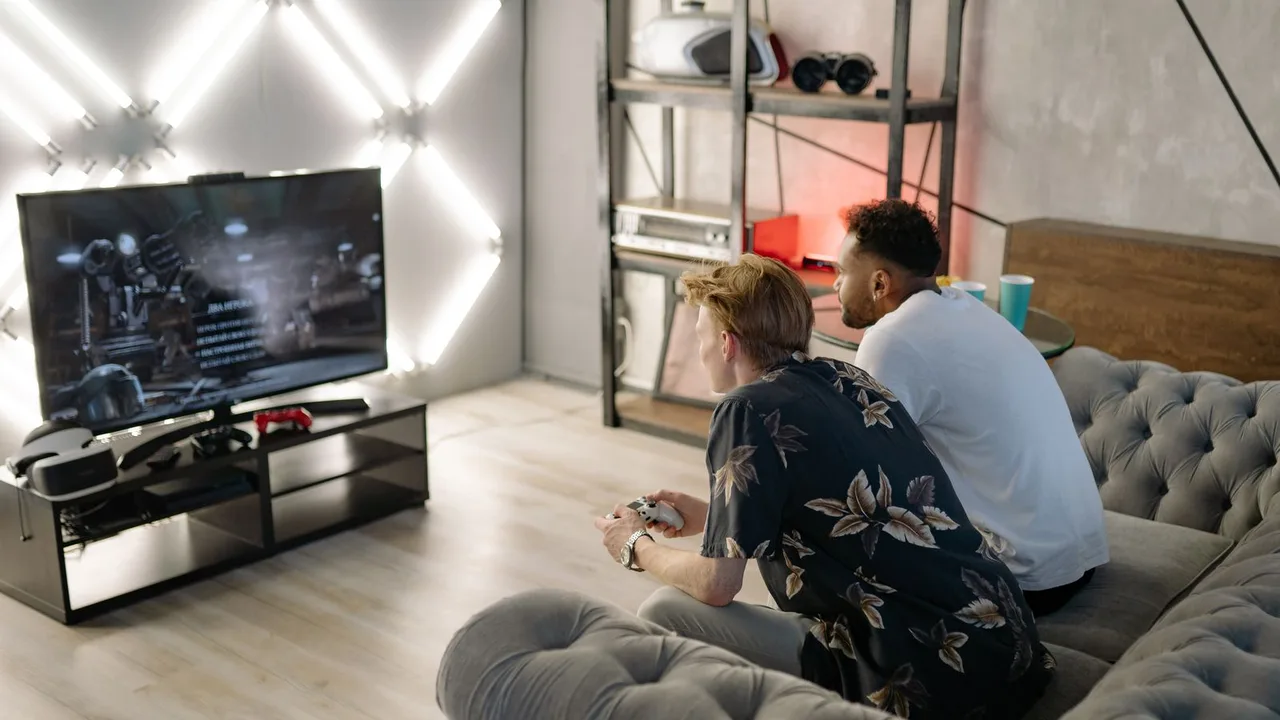
NetherSX2 Widescreen Patches Guide: Play PS2 Games in 16:9
Learn how widescreen patches work in NetherSX2 on Android, how to enable 16:9 for supported PS2 games, and what to do when a game has no patch or stretches the image.
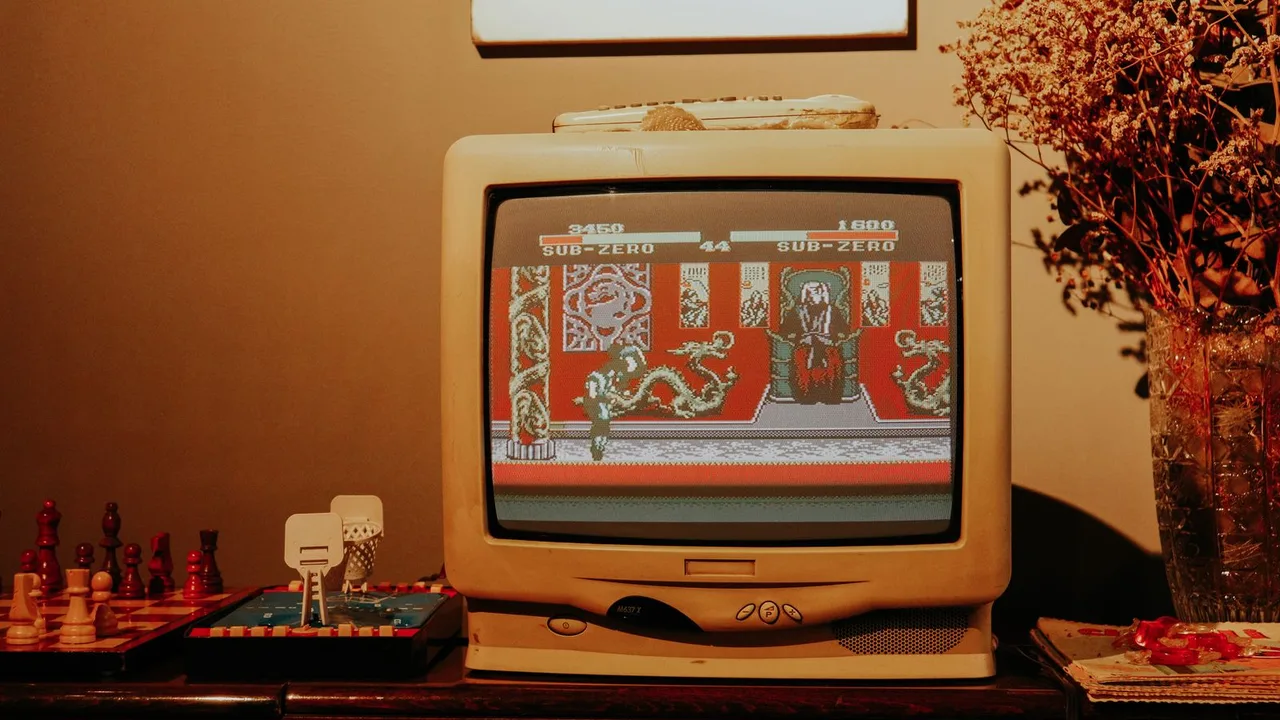
NetherSX2 Graphics Upscaling Guide: Internal Resolution Explained
Learn how internal resolution upscaling works in NetherSX2 on Android, what 2x, 3x and higher scaling do to PS2 games, and how to choose a level your phone can hold.
NetherSX2 Vulkan vs OpenGL: Which Renderer Should You Use?
Compare Vulkan and OpenGL renderers in NetherSX2 on Android, learn which suits your phone GPU, and how to test both properly for each PS2 game you play.